21 Things You Can Automate In Your Freelance Business

 
Copy of Copy of Templates_ Opt-In Button (2).png
21 ways to automate your design business by Nesha Woolery. Is your business stressing you out? Does it feel like you never get through your to-do list? Like there's not enough time in the year? Here's a list of 21 things you can automate your design…

Freelancers and other creative business owners only have so many hours in the day, yet we expect ourselves to complete so many tasks.

Have you ever felt frustrated because you haven't crossed off every task on your to-do list?

Have you felt hopelessly unproductive because you only completed half of the things you needed to do?

Do small tasks suddenly turn into long, hard tasks that take hours? That's hours of time that could be spent finding new clients or creating passive income streams!

It's difficult NOT to be hard on ourselves. A lot of pressure comes with running a one-person creative business. But we don't have to do All The Things. If we can automate some of the small tasks that pile up, we can save ourselves time and bucket-loads of stress!

What is automating?

Automation is your new best friend. It's when you use an app or software to complete a task for you. It eliminates the need for you to be involved with the task at all, freeing up your time so it can be spent on more important things, like...

  • Filling your client docket.

  • Spending more time with your husband and kids!

  • Creating and selling a digital product so you don't just make money from your services anymore.

  • Setting up a sales funnel that turns more website visitors into paying clients. *ka-chinggg*

Sounds like bliss, right? Think of all the TIME you'll have to grow your freelance business and live a fuller life. All you have to do is invest a little time right now in automating your business.

Here are 21 ways you can do that...


21 Ways To Automate Your
freelance Business


1. Set up an email autoresponder

You can create an autoresponder from most, if not all, email accounts. An autoresponder is an email that automatically sends to everyone who emails you. You can use it to tell people when they can expect to hear back from you, when they WON'T hear from you, when your soonest availability is and more.

This is the easiest way to cut down on the number of follow-up emails you get from people who expected to hear back from you straight away. It's also the simplest way to set clear boundaries and expectations in your business!

There's a lesson on creating the perfect autoresponder in Organize & Automate, plus a copy & paste script you can use!

2. Use the same schedule with every client

Screen Shot 2018-06-18 at 11.39.30 AM.png

I recommend creating a reusable project schedule you can use with every client.

A project schedule like the one above outlines the timeline of the project. It shows the days and weeks in calendar format and the tasks you're going to complete on each day. It also includes the days your clients feedback is due.

To put this kind of schedule in place, just commit to starting each project on the same day (eg. Monday's.) Then follow the schedule for every project you have!

With a project schedule in place, you'll always know when to expect your projects to end. And with that level of organization, most projects will actually end earlier than expected. (Can I get a high five? 😉)

3. Automatically send feedback reminders to your clients

Screen Shot 2018-06-18 at 11.02.45 AM.png

My clients never used to provide feedback on time. Ever. It would usually result in their project going weeks over its deadline, and I'd be pulling my hair out with stress.

Not anymore.

I use a free project management tool called Asana to manage my projects instead of emailing my clients back and forth. Inside Asana, you can have conversations, share files, feedback, calendars and more with your clients! The best thing about it? Everything is organized on one page.

Asana also allows you to set  a 'due date' for every task you create. This means you can create a task, call it 'Feedback Is Due', assign it to your client and set a due date. Then, a day before their feedback is due, Asana sends them a reminder. Awesome, right?!

4. Automatically send follow up emails to past clients

Some freelancers never speak to their clients again after they're done working with them. They just... hand the files over and stop communicating.

Does this sound like you?

If so, I hate to break it to you but you're leaving thousands of dollars on the table.

If these clients are happy with the work you did, they will most likely want to work with you again! But if you don't keep in touch, they'll probably forget about you.

If you use an app like Dubsado* to manage your business, it's really easy to keep in touch with past clients automatically. Simply use Dubsado's 'Workflow' feature to automatically send follow up emails to your clients after their project is complete. (If you're interested in learning exactly how to do this, I teach it in my course, Dubsado In A Day!)

In my course, we add these emails to the sequence:

1. The 3 week follow up. In this email, you check in and see if they are happy with the work you provided, need any more work or have any questions. 

2. The 6 month follow up. Check in and keep it more general- talk about how well they are doing and mention great things you've seen them do over the last six months. Then remind them you're there if they need to hire you again!

3. The 1 year follow up. You keep this email really short and simple. Just check in, wish them a happy year and ask if they'd like to work together again.

5. Automatically add clients to your mailing list

Stay in touch with your clients by automatically adding them to your mailing list so they can hear about future deals or new services you launch.

Just remember to get the client's permission first. (You can do this by adding a checkbox to your contact form, asking them to agree to being added to your mailing list!)  

To automatically add a client to your mailing list, you'll need to sign up for a free Zapier account. Zapier allows you to connect apps and trigger automations.

You can create this zap or something similar:

1. Trigger: A client completes their payment via the invoice you send them.

2. Action: Zapier adds the client to your mailing list!

Here's an example of how you'd set this zap up in Zapier using two common tools: Freshbooks* for invoicing and Convertkit* for your mailing list.


6. Use email scripts

Do you send the same emails over and over again? If so, create copy & paste email scripts to use for milestones within your projects!

I have an entire lesson on email scripts in my course, Organize & Automate. There's even a workbook of 11 copy and paste scripts you can start using straight away!

7. Create an FAQ Page

Create an FAQ page where you answer common questions that your clients ask. I link to my FAQ page on my contact page so inquirers can see if their question is answered before contacting me. It saves the inquirer time writing a message and it saves me time answering it.

I also link to my FAQ page in my email autoresponder, reminding people to head there if they haven't already to get a quick answer to their question. 

8. Set up invoice reminders

Emailing clients to remind them their payment is due is one heck of an awkward task!

Most invoicing systems (like Dubsado* and Freshbooks*, two of my favorites), allow you to set up invoice reminders so you don't have to feel uncomfortable asking for overdue money anymore. The app does it for you!

9. Automatically provide guidelines & policies to your clients

Screen Shot 2018-06-18 at 11.22.46 AM.png

Do you find yourself giving your clients the same instructions and guidelines all the time?

Instructions like:

  • How to provide you with helpful feedback.

  • How important timelines and deadlines are.

  • How your payment policy works.

  • What files they need to give you before the project starts.

I was always sending my clients PDFs that included these instructions or manually writing it out for each new client, so I added these instructions as tasks inside the Asana project my client and I share! (You can learn more about this in my free Project Management For Freelancers course.)

10. Create a client portal

Do your clients email you lots of questions after you've finished working with them? I'm sure you're happy to help them, but it takes up a lot of time. To stop receiving so many questions, create a client portal (or page) on your website.

Your client portal could include all the common questions clients ask you, plus tutorials and videos.

Since I created my client portal, I've received a LOT less questions from my clients, saving me a lot of time.

11. Create a reusable project template in Asana

As I mentioned earlier, I use Asana to manage my projects. Within Asana you can create a project page for each client. Instead of creating a new page from scratch every time you book a new client, create a project template and duplicate it for every client you take on!

Screen Shot 2018-06-18 at 11.43.08 AM.png

Copy+of+Templates_+Opt-In+Button+(1).png

12. Use a bookkeeping tool

If you still do your bookkeeping in spreadsheets then maybe it's time to switch to using a system like Freshbooks* or Wave. These apps automatically import your sales and expenses. All you'll need to do is categorize them!

13. Organize your business receipts

It's time to stop pulling your hair out as you try and organize a year's worth of expenses from a shoebox of receipts. If you use Wave (it's free!) as your bookkeeping tool, it comes with a free app for your phone called Wave Receipts. Every time you buy something for your business, use the app to take a photo of the receipt and it will store it in Wave!

Obviously, logging our receipts can't be entirely automated but this is as close as it gets!

14. Allow your clients to schedule calls with one click

Do you and your clients send dozens of emails back and forth, discussing the best time for you to call each other? It's hard - especially if you live in different timezones!

Use a scheduling app like Calendly or Acuity Scheduling*. These apps show your client the times and dates you're available and display those dates in the clients own timezone.

15. Set up automatic appointment reminders

Scheduling apps like Calendly or Acuity Scheduling* send automatic confirmation emails and reminders. You no longer need to manually email your client to remind them of your appointment!

16. Automatically follow-up with potential clients who ghosted on you

If you're a Dubsado user, you can use their Workflows feature to automatically follow up with potential clients who ghosted on you. (Dubsado's Workflows are the ultimate form of automation for freelancers. Learn more about them in my course, Dubsado In A Day!)

17. Automatically train your clients to use your project management tool

Scared your clients won't want to use your project management tool to communicate about their project? They will if you train them how to use it! To do this, create a two minute tutorial about why you're using a PM tool and how to use it. No need to train your clients one on one. You can send the same tutorial to them all!

18. Automatically pay your bills and team members

To make sure you never forget to pay a business expense, set up a standing order in your bank account. A standing order is an instruction to your bank account to make regular fixed payments to a particular person or company. Set these up and forget about your bills! You have better things to spend your time on.

19. Send your contracts electronically

Stop making your clients print, sign, scan and send your contract.

I use Hellosign to automate this process. Hellosign let's you upload your contract and create editable fields for the client's name, address, payment schedule and other details. 

Each time you need to send a contract to your clients, just fill in the editable sections of your contract inside Hellosign and it will send the contract to your client for their electronic signature!

20. Automate your file-saving process

Screen Shot 2018-06-18 at 12.03.34 PM.png

If you use Illustrator CC, there's a really quick and easy way to export all your assets into multiple file types with just a few clicks. It's called the Asset Export window! Learn how to use it inside my course, Organize & Automate.

21. Create moodboard / style guide templates

Here's another one for the freelance designers reading this! Stop manually creating moodboards, style guides and website wireframes for every project. If you spend a little time creating templates for these things once, you'll be able to reuse them for years!


Copy+of+Templates_+Opt-In+Button+(1).png
 

Choosing the right Squarespace template

Click on this pin to find out 2 steps to choosing the right Squarespace template for you. #Squarespace #Templates #Business #Freelance #Design #Website

Compared to Wordpress, Squarespace doesn't offer many templates. This is a serious deal-breaker for many, but for others it's amazing. It limits your options and stops you from overthinking. 

Even though there aren't many templates, you can still make your chosen template unique by adding lots of different features and page layouts.

It's important that you take your time when deciding which template is best for you. Even though you can switch templates at any time, you don't want to waste any time tweaking the wrong template. 

Related post: Why I switched from Wordpress to Squarespace

There are 2 steps to choosing the right Squarespace template for you.

1 . What is the goal of your website?

  • If you're an online seller, your main website goal is selling stuff! So you'll need a template that includes a product-display you like the look of.
  • If you're a hardcore blogger, you'll probably need a template that includes a blog sidebar. Not all templates do. 
  • If you're a photographer, or you need to display lots of large images on your website, you'll need to choose a template that focuses on visuals. 

I'm sure you get the point here; get clear on your goal before you choose a template. When you have a Website Goal in mind, browse through the Squarespace templates looking for ones that help you achieve your goal. You can select templates that are specifically for shops, portfolios, businesses and more by using their menu on the top right. 

2. What features do you want to include in your website?

Now that you have a goal in mind, find a template that includes features that help you towards your main goal. 

  • Blog sidebar. As I mentioned, most bloggers want a sidebar where they can include social media links, categories, popular posts and more. Only certain templates include this. Those templates are: AvenueBedfordDovetailFiveFrontrowForteGalapagosIshimotoPeakWells
  • Gallery/portfolio. Even though you can add a gallery to any template using the drag-and-drop Gallery widget, some templates include unique Gallery designs, such as full-width galleries that fill the screen. If you're a photographer for example, you may want to choose a template like this to really showcase your photos. 
  • Shop page. All templates can include a shop, but some templates have unique shop designs. If your main purpose is to sell products through your website, look for a template with a shop design you love.
  • Navigation menu. Some templates feature a navigation menu above the header, below the header, or no menu at all. Decide how important it is for your visitors before choosing a template. 

Related post: Squarespace vs. Wordpress

My 5 favorite Squarespace templates for creative businesses

Click on the images to go to the template page. From there you'll be able to view the demo and view websites using that template. 

1. Galapagos

I use Galapagos for this website. Other great examples of small businesses using the Galapagos theme are Krishna Solanki and Think Creative.

2. Five

I love the simplicity of this theme. The fullwidth photo is a great feature. Jess Creatives and Kayla Hollatz use this template nicely.

3. Montauk

This is a simple and minimal template for business owners who want the focus to be on their work. Thread and Stone, Ally Allison Events and Sophisticaited are a great example of how this template can look. 

4. Pacific

Ten Twenty One use this template for their photography business, and I can see why! This template includes lots of fullwidth images, making it the perfect template to show off photos.

5. Anya and Deven

Even though this template is for weddings, it can be used for businesses who only need to showcase a few things online, like their open times, business information and photos. I think this template is great for brick-and-mortar businesses. Christina Liang uses this template for her photography business. 

Tell me- which Squarespace template is the best fit for you? How have you altered yours to make it more unique?


How to create a brand board

 
Designers - learn why you should be creating brand boards for your clients and why. Just click on this pin to find out more! #Designers #Freelance #Business #Streamlining & Automating #Design #Branding

After spending the last few months working on my course, Organize & Automate, and recording lessons to help designers automate their design process, I thought I'd share a snippet from the course! So here it is.

Let's dive into brand boards and why you should be creating them for your clients- and how!

A brand board is an at-a-glance document containing all your brand elements- from your main logo to your color palette. You may have seen them floating around Pinterest but not understood what they were. Or, if you're a designer, you may want to start creating brand boards but you don't know where to start. 

Let's start with why you should create brand boards. 

Brand boards show the client every element of their visual brand- all together in one neat document. They're important because they help convey a brand’s values, attributes and personality in one glance.

When you’ve designed blog graphics, prints or anything else for your business (or for your clients), its helpful to look at the brand board and check that what you’ve designed is in line with the colours, fonts, graphics and overall identity that is on the board.

That isn't the only reason brand boards are important though. If you're a designer like me, have you ever thought about what you're going to do if one of your clients comes back to you for work and you're not available?

You'll need to refer them to another designer. If you made a style guide for them, their new designer will be able to use that to expand on their branding without ruining all the hard work you put in to make it look so damn gorgeous in the first place. 

Clients benefit from brand boards because they can easily find their color codes and font names on them.

Would you be a very happy client if you went away from the project with lovely branding, but no idea what fonts and colours were used? No idea how what to use to create additional brand materials in the future? I wouldn't. 

Brand boards are totally different to style guides, so try not to confuse the two. 

Style guides include instruction on how to use your brand elements, such as how much spacing a logo should have around it, or what backgrounds your logo can and can’t be used on… I prefer to think of style guides as identity guidelines. They can be pretty complex, but brand boards are simple boards that only include your brand elements — not instructions on how and where to use things.

(Psst! I talk all about creating style guides, moodboards and other time-saving templates in my course, Organize & Automate.)


download.jpeg

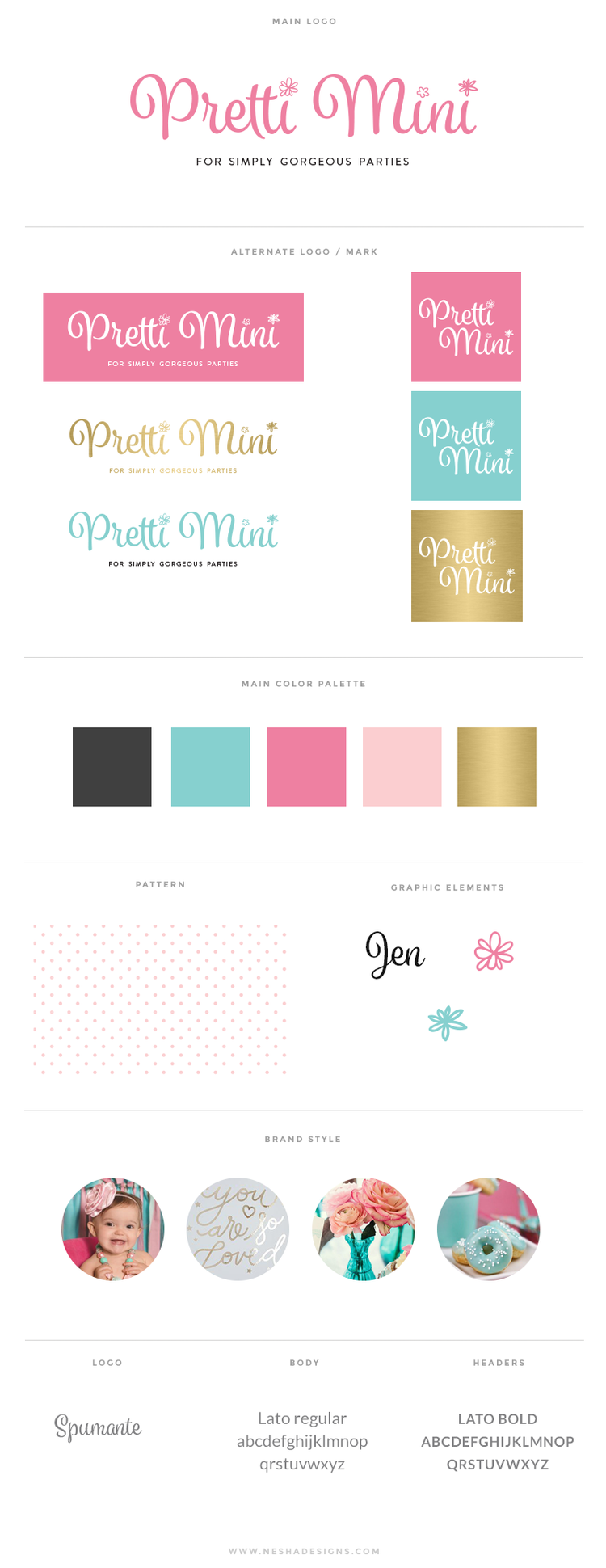
Here's what I include in my brand boards:

1. Main logo

The main logo is used on the client's website, on their stationery and usually on PDFs etc.

2. Logo variation

This is another version of the main logo, with a slight difference. It could be a vertical version, it could have a shape around it, it could be in another color, or it could be textured...

It's a good idea to offer your clients a logo variation because you never know when they might fancy changing things up. Clients don't want a basic brand- they want a brand that's cohesive, but still interesting! 

3. Sub mark

A sub mark is another element that is pulled from the main logo. It's usually smaller than the main logo, and is often used as a favicon or profile picture.

Sub marks are especially helpful to brands with long business names because they provide a simple alternative to their main logo. Sub marks also make great watermarks because they're usually in a circular shape and fit nicely in the corners of photos. 

4. Main color palette

I create a main color palette that consists of 5 colors. These colors reinforce the 'vibe' of the brand.

For example, a feminine brand may choose pastel colors to help add to their romantic brand vibe, and a corporate agency may choose dark or bold colors to give off a feeling of power. 

On your client's brand board, make sure you include the hex codes for their colours. If you want to be even more helpful, you can provide the RGB, CMYK and Pantone values!

5. Supporting palette

A supporting colour palette is a set of extra colours that compliment the main colour palette nicely. These colors can be used in blog post graphics, social media posts and other brand graphics to inject more variety while still remaining cohesive. 

6. Supporting pattern

A pattern is a nice way to add to the aesthetic of your brand. For example, a feminine brand could strengthen their girly vibe with a polka dot pattern! Patterns are usually used on print design, social media designs and PDF designs. 

7. Fonts

Fonts have to be chosen very carefully when creating a visual identity for a client. Just like a color palette, fonts can make or break the brand vibe you're trying to give off.

Script fonts are often used for feminine brands, whilst chunky sans serif fonts could be used for modern brands. Whatever the font, make sure you include all font names and their uses in your client's brand boards. Tell your client which fonts should be used for paragraph text and headers. 

These elements make up a visual identity, but there's also so much more you can add! Once you have the basics in place, you can create social media branding, PDFs, print designs, course designs and more.

Brand boards contain the very core of your client's brand identity. They guide every visual decision your client will make, so make sure you include one in your client's final files. 

Do you have a brand board of your own? If you're a designer, what is your favorite part of the design process? Leave a comment and let me know!


How to switch from Wordpress to Squarespace

 
A lot of people say that switching from Wordpress to Squarespace is difficult. Well... I'm here to prove that statement wrong by showing you guys a really simple process of switching from Wordpress to Squarespace. Don't believe me? Click on this pin…

Please Note: I do not offer this as a service. It's simply a tutorial to help you do it yourself, so please don't email me for a quote. Thanks friends!


A lot of people say that switching from Wordpress to Squarespace is difficult. It's something I used to believe too until I made the switch myself. I'm delighted to tell you that I easily switched my website over within a day and I didn't run into any problems!

Squarespace has an amazing library of tutorials that help you figure out how to do all things Squarespace-related, but a lot of people have been asking me for tips of how they can set up their Squarespace website or transfer from Wordpress, so I've decided to make a step-by-step tutorial!

Let's go through a few common questions before we get started...

What will this tutorial include?

  • How to set up your Squarespace website.
  • How to import website content from Wordpress to Squarespace.
  • How to switch your custom domain from Wordpress to your new Squarespace website.
  • URL mapping, so your old blog post URLS still work.
  • And more!

What is imported from Wordpress to Squarespace?

  • Blog posts
  • Page content
  • Users/authors
  • Images
  • Comments
  • Attachments

What isn't imported?

  • Your website theme and layout are not imported. You'll have to choose a Squarespace theme. 
  • Plugins
  • Widgets

Can I easily make the switch myself?

Yes. If you're confident with making changes to your DNS records, this will be a breeze. If you're not very tech-savvy then I advise you hire someone else to switch your website from Wordpress to Squarespace for you. (Please Note: I do not offer this as a service.)


Step 1. Sign up for Squarespace

Head to the Squarespace website and sign up for a trail account. 

Step 2. Choose a template

After you signing up you'll need to choose a template for your website. As I mentioned before, you can't import your Wordpress theme or layout to Squarespace so choose a theme that is similar. I chose the Galapagos theme because it's simple, clean and very similar to my old Wordpress site. However, there are plenty of other themes to choose from. 

  • Adriondack: perfect for online entrepreneurs.
  • Montauk: Great for minimalists. 
  • Avenue: A beautiful portfolio template for designers and photographers.

Step 3. Fill in your basic information

Head to the Settings section and fill in your business name and description, connect your social media accounts, alter your blog settings, add a business email address (eg. hi@yourbusiness.com) and play with the other settings. It's not complicated- you'll be done in 10 minutes!

Step 4. Change your SEO settings.

Squarespace SEO is just as good as Wordpress SEO. In fact, it's even better because you don't have to install SEO plugins or make changes yourself! Your theme has already been optimized for SEO by the creators. Go to Settings > Marketing > SEO and simply enter a description for your website. You don't need to change much else.

Step 5. Import your Wordpress content

Go to Settings > Advanced > Import/Export > Import > Wordpress. You'll have to enter your URL and Wordpress login details and then click import. A progress bar will indicate that your Wordpress content is importing and a 'success' message will appear when it's done. It takes about 5-10 minutes. Simple!

Step 6. Enable your imported content

In the Pages section, scroll down to Not Linked. You'll see all your imported pages here. To enable them, click the settings icon on each page and click enable. Then go through your imported pages and add your main ones to your navigation menu.

Step 7. Upgrade your account

When your site is completely ready, upgrade your account. I use the Business plan which is $26 per month or $18 if you pay annually. I prefer this plan because it offers unlimited pages. If your Wordpress website had lots of pages, this plan will probably suit you too.

Step 8. Transfer your existing domain to Squarespace

It's not exactly transferring, but I call it that. You need to keep your domain where you're currently hosting it (on Godaddy or Dreamhost etc) and map your domain to your Squarespace website. 

You'll need to go to Settings > Domains > Connect a third party domain. Enter your domain name, click on your host provider and click Connect Domain. A new panel will open with the records you need to enter in your hosting account so your domain can connect to Squarespace.

*This above image is from Squarespace themselves.

I'm not going to show you how to add these records to DNS settings because Squarespace has amazing tutorials on how to do that here. If you're not confident in doing this, you can hire someone professional to do it for you.

Step 9. Wait for your domain to work

When you've added those records to your hosting account, your domain will connect to your site within 24 hours. You can keep checking back to see how it's going by visiting Settings > Domains. Your domain will have a red line by it if it hasn't gone through, an amber line if it's almost there, and a green line when it's done. 

*This above image is from Squarespace themselves.

Step 10. URL mapping

After 24 hours, your custom domain will point to your Squarespace website. But it isn't over yet! Wordpress post URLS are different to Squarespace post URLs. In Wordpress, your blog post URL would have looked like this: yourdomain.com/my-first-blog-post whereas in Squarespace it will be yourdomain.com/blog/my-first-blog-post. Spot the difference? This isn't good because anyone who clicks on your blog posts from sites like Pinterest will now be taken to a 404 page.

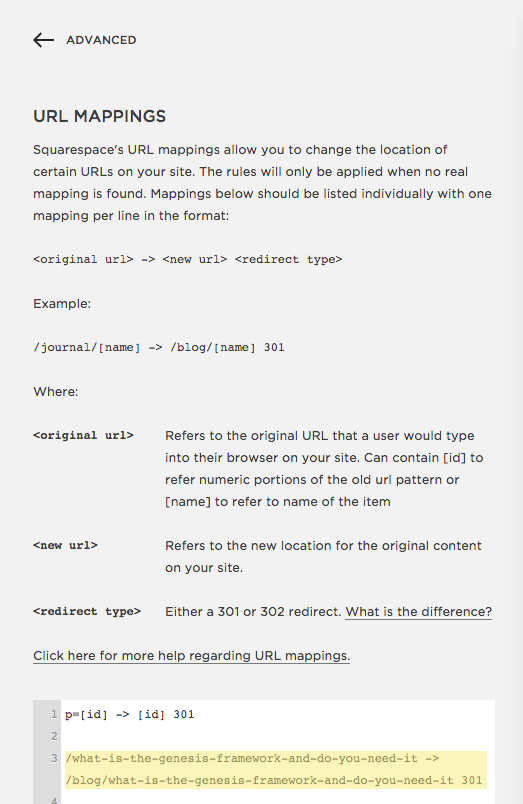
To fix this, go to Settings > Advanced >URL Mappings. This function allows you to easily redirect broken links to the correct links. 

A URL mapping will look like this:

/old-url -> /new-url 301

For example, check out my URL mapping below (highlighted in yellow). I've pasted the old URL without www.neshadesigns.com in front of it, added an arrow, pasted the new URL, and added 301 at the end to make it a permanent change. 

It may not be practical to fix every blog post link- after all, who has that kind of time? Instead, I fixed the links for my 30 most popular blog posts. You may want to do the same and then fix the other links over time.

For more information on URL mapping, click here.

Please Note

You can't transfer your Wordpress website design to Squarespace. You have to choose a Squarespace template and customize it. 


Why I switched from Wordpress to Squarespace (after being such a Squarespace hater!)

 
Click on this pin to find out why I made the decision to switch from Wordpress to Squarespace and no it's not because it's better but something much more. Find out what that 'much more' is now! #Business #Design #Sqaurespace #Wordpress, #Web Design

OK, so I didn't hate Squarespace... That's a little dramatic of me. But I didn't understand the hype around it, or why why dozens of my friends were switching from Wordpress to Squarespace.

I tried it for a day and decided that it was OK, but not as good as Wordpress. I even wrote a blog post outlining the pros and cons of both and favoring Wordpress. (That post has since been updated with a fair amount of pros for both.)

However, a conversation with a friend totally changed my opinion of Squarespace. 

As we sat drinking frappucinos one afternoon, we began talking about work. I told her everything was going well and I was still enjoying my business. But I wished things were a little more simple. 

I explained that one of my goals this year is to achieve a simple business. I thrive most when things are simple, easy and clean. I've noticed this spans into my personal life too, not just my business. I like simple interior decor, simple outfits, and I much prefer a simple and quiet life over a busy city life.

I've slowly realized that when my business systems and strategies are simple, I feel happier and more relaxed. And my business blooms a lot more when I feel that way!

I told my friend that I'd simplified a lot of my systems, but things still didn't feel 'easy' enough. I'm a big believer that business should be easy, or else it isn't fun. 

"You wrote a blog post on Wordpress vs. Squarespace, right?"

I nodded. 

"I know Wordpress is awesome and offers everything you could ever need in a website, and I know that you love it. But maybe what you need is a simpler platform, with less updates and plugins and themes. Like Squarespace."

She'd been raving about Squarespace all year and I'd just rolled my eyes. But it was when she said that (or something to that effect, anyway) that I decided to give Squarespace one last try.

I signed up for another trial of Squarespace and set myself a little excercise: see how long it takes to rebuild my website on Squarespace, getting as close as I could to my Wordpress design.

And here's the amazing thing: it took just two days, and that was in between doing client work. 

Here the other amazing thing: I think my Squarespace sites looks better than my Wordpress site. 
It's amazing how much better my second Squarespace trial was. Maybe it's because I actually gave myself an assignment instead of fiddling with a theme I wasn't interested in. Either way, I've found myself jumping on the Squarespace bandwagon. Not because it's better than Wordpress but because it has something Wordpress doesn't: severe simplicity. Anyone could learn Squarespace in a day, and that really appeals to me. 

A few more reasons why I switched from Wordpress to Squarespace (after being such a Squarespace hater):

  • I knew my clients would love it. I design brands and websites for small business owners, and they usually like to maintain and update their website themselves when our project is over. Squarespace is the perfect platform for them to maintain their site easily without getting confused or stressed out.
  • I love the drag and drop feature. I barely have to touch any code!
  • I love that it's limited, which is ironic because that's one of the aspects I disliked to begin with. But I love that my clients and I can only choose from a certain amount of themes. It stops us from overthinking things.

I'm very happy with my decision to switch from Wordpress to Squarespace. In fact, I'm thinking of creating a mini-series on it for you very soon!

In case anyone is wondering, I'm using the Galapagos theme. It's a very popular theme for bloggers because of how simple and clean it is, so I highly recommend you try it if you're a Squarespace user!

I'd love to know- are you thinking about switching to Squarespace? Do you have any questions or concerns?